Supports
Standard supports can easily be added in the graphical screen. In the menu bar choose one of the supports below.
Remark:
These are the supports that occur often in practice, but you can also make an arbitrary (spring) support yourself by making use of 'A', 'P', 'N' or 'S'. See the table below.
| indication | description |
|---|---|
 |
pinned support (Tx,Tz,Ry) ( 'A','A',' ') |
 |
roller support z-direction (Tx,Tz,Ry) ( ' ','A', ' ') |
 |
roller support x-direction (Tx,Tz,Ry) ( 'A',' ', ' ') |
 |
full fixed support (Tx,Tz,Ry) ( 'A','A', 'A') |
 |
spring support x-direction (Tx,Tz,Ry) ( 'S',' ', ' ') |
 |
spring support z-direction (Tx,Tz,Ry) ( ' ','S', ' ') |
 |
spring support about the y-axis (Tx,Tz,Ry) ( ' ',' ', 'S') |
In this mode you can add several supports with the left mouse button. While placing you see the coordinates at the bottom right of the screen.

Supports can be placed arbitrarily, in a fixed raster, or on grid lines.
Supports are nodes that are fixed in a certain direction.
Changing a support
You change a support by clicking on the node with the left mouse button and then choosing properties with the right mouse button. Or, even easier, by double-clicking on the node. The dialog box below is opened.
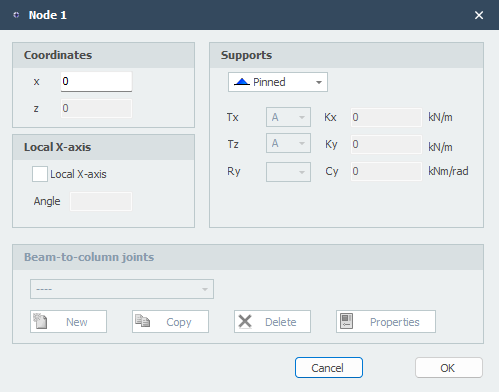
Restraints
| indication | description |
|---|---|
| ' ' | free - no restraint |
| 'A' | fully restrained (Absolute) |
| 'P' | restrained for a Positive reaction force; free for a negative reaction force |
| 'N' | restrained for a Negative reaction force; free for a positive reaction force |
| 'S' | spring (Spring); the spring value has to be entered. |
Nodes table
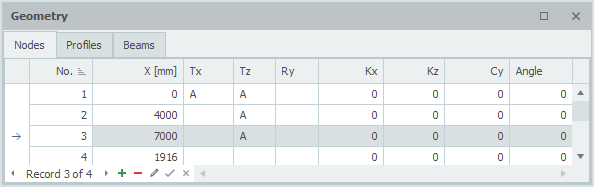
Supports can also be added and/or changed in the table Nodes at the bottom left. It does not matter which you use. You can also switch between graphical input and table input in the meantime.