View


Zoom window
With this function you can zoom in on a part of your structure. You use this to make the graphical input easier or to assess results locally.

Pan
With pan you can shift / drag the drawing of a zoomed part. Other parts of the structure then come into view.

Zoom extents
With zoom extents the complete structure is displayed full screen.

Previous view
With zoom window you can, if required, zoom in on a part of your structure in several steps. With the function previous view you go back one step.

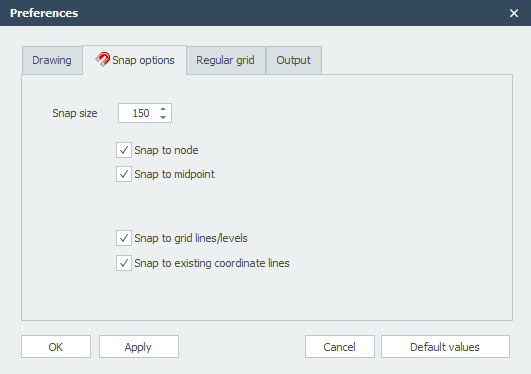
Here you can also make the snap settings. See also Snap settings.
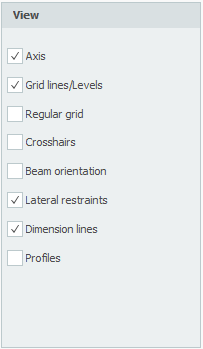
With the setting below you determine what you want to see and what not.
Grid
A grid is drawn by default. The dimensions of the grid and the colour of the grid lines can be set.
Axis system
Drawing of the global axis system.
Node numbers
Node numbers are displayed next to the node between parentheses (..).
Member numbers
The member numbers are displayed next to the member between square brackets [..].
Profile names
The profile names are displayed next to the member.
Member orientation
The local member axis system (see Sign convention) is drawn in the middle of the member. The direction of the local z-axis is shown. This is particularly important for entering the member loads, which are entered in the local member axis system. See Member loads.
Cross hairs
The two cross hairs (horizontal and vertical) are drawn. This can be handy while entering.
Grid lines / Levels
Grid lines, levels and/or auxiliary lines are drawn dotted. See Grid lines / Levels.